
 EasyClip
Everything you copied, and every screenshot, one shortcut away.
Press Ctrl+Alt+V for everything you copied today. Press Ctrl+Alt+P for a screenshot you can mark up and share safely, or Ctrl+Alt+R to record your screen. Passwords you copy disappear on their own.
Copied a password? EasyClip never saves it and wipes it from the clipboard after 30 seconds.
See it work
EasyClip in 35 seconds
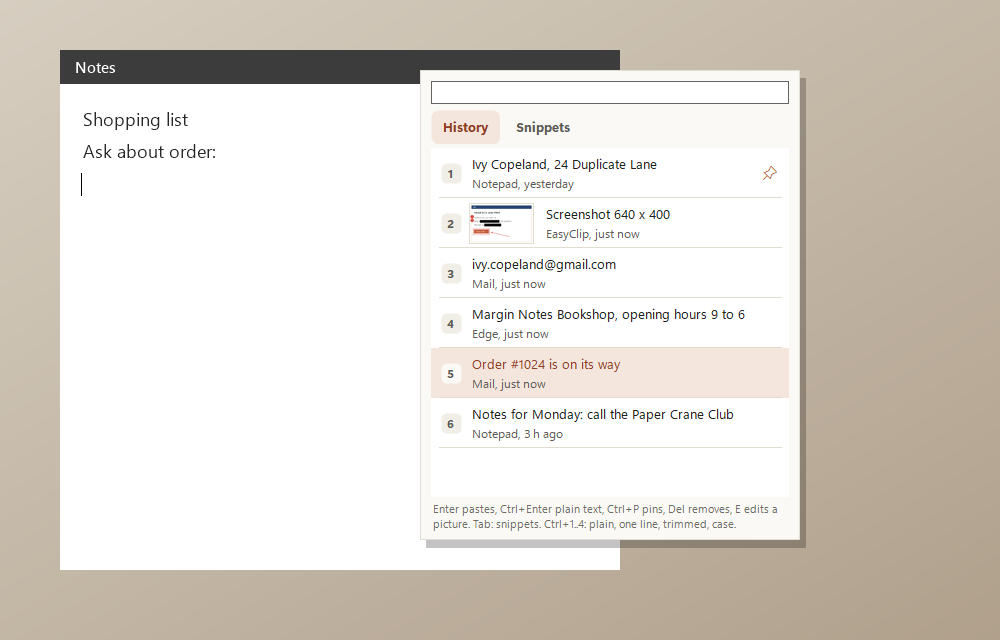
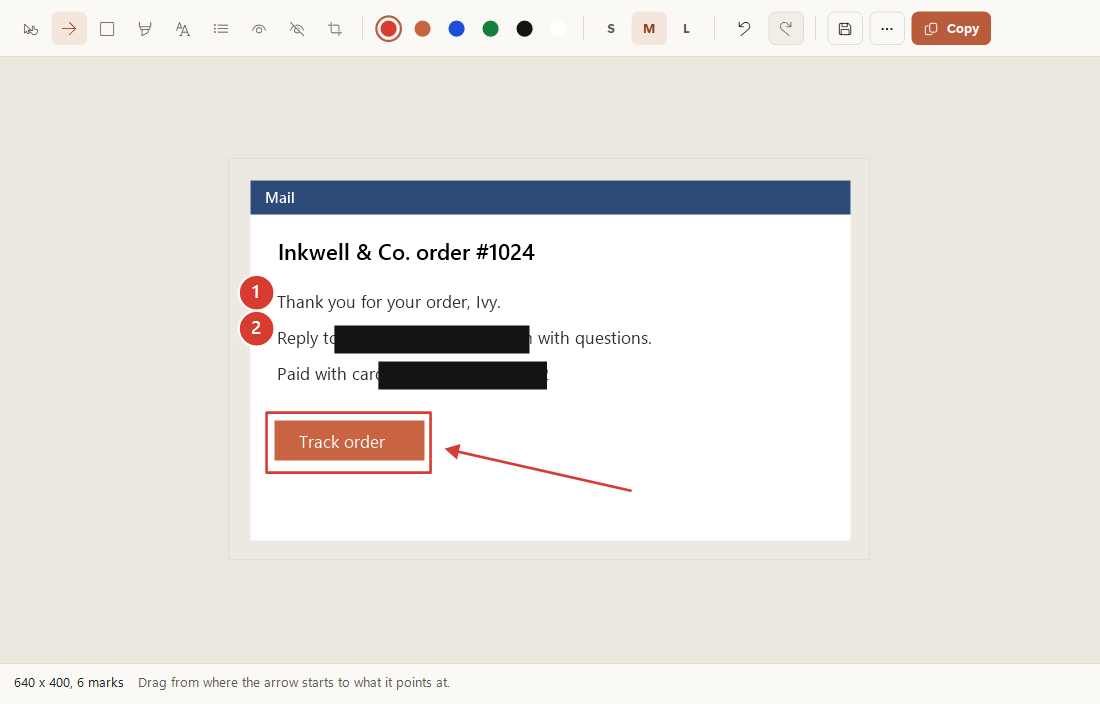
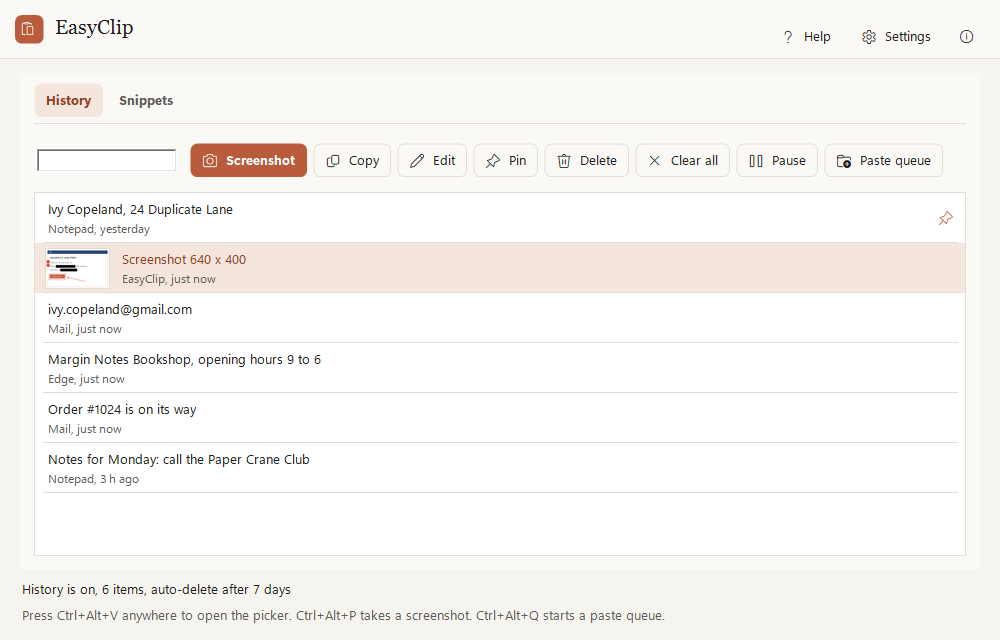
The real app: copy as usual, open the picker with Ctrl+Alt+V and paste, take a screenshot, cover the email address and card number in one click, and mark it up with steps and an arrow.
Features
What EasyClip does
EasyClip now includes EasyShot, so screenshots and everything you copy live in one place.
Clipboard history
Everything you copy, text and pictures, in a picker at the mouse. Type to search, press Enter to paste.
Secrets don't stay
One-time codes, card numbers, IBANs and passwords are never saved, and cleared after 30 seconds.
Paste queue
Copy several things from an email, then each Ctrl+V pastes the next one. Made for filling in forms.
Snippets
Saved text with fields like {date} filled in when you paste, for replies you type every day.
Screenshots
Drag an area, click a window or take the whole screen. Every screenshot lands in your history too.
Mark it up
Arrows, boxes, highlights, text, numbered steps, blur, redaction and crop.
Safe to share
It reads the screenshot on your PC and offers to cover emails, phone and card numbers in one click.
Pin and fix
Pin a screenshot on top of everything, or paste text as plain text, one line or trimmed.
Record your screen
An area, a window that moves, or the whole screen, with the PC's sound and your microphone. Password managers are hidden by themselves. Trim it, make a GIF, or copy it into a chat.
How it works
Three steps
Copy as usual
Or press Ctrl+Alt+P to take a screenshot.
Press Ctrl+Alt+V
The picker opens at the mouse with everything you copied.
Pick and paste
Enter pastes into the window you were in. E opens a screenshot in the editor.
Handy keys
Private by design
Like every Easy Suite app: no account, no internet needed, no tracking.
- History is encrypted for your Windows account and never leaves the PC.
- Items that password managers mark as private are never recorded.
- Text in screenshots is read by Windows on this PC, never by a cloud service.
- Found a problem or have an idea? Feedback is one click away inside the app: it opens a short form in your browser, and the app itself sends nothing.
Download
Get EasyClip
Free to use for your own personal or work use. Installs for your Windows account only, no administrator rights needed.
Download the installer (37 MB)
- Version
- 1.2.0
- Needs
- Windows 10 (version 2004 or later) or Windows 11, 64-bit.
- SHA-256
58bac0fb6ba1b1286ac79e82417a8c05b06a5c2d7c4149106c9c44d694e8c977- Check it
- In PowerShell,
Get-FileHash .\EasyClip-Setup-win-x64.exemust show exactly this SHA-256. If it doesn't, don't run the file. - Terms
- Licence agreement (you accept it during setup)
- Release notes
- EasyClip 1.2.0
Installing
EasyClip is new and made by one person, so Windows may be cautious about it at first. This is normal.
- If your browser says the file is not commonly downloaded, choose Keep.
- Right-click the downloaded file, choose Properties, tick Unblock and click OK. If there is no Unblock box, skip this.
- Double-click it. If you see "Windows protected your PC", click More info, then Run anyway.
- Accept the licence agreement and follow the steps.
A note from the developer
Thank you for trying EasyClip! I made it so that the thing you copied an hour ago is still one shortcut away, and so that a screenshot can be shared without showing an email address or card number by accident. I hope it saves you a few clicks every day.
Aalok L, maker of EasyClip
 EasySign
 EasyPDF
 EasyFile
 EasyTouch
 EasyGuard
 EasyNote