 EasyPDF
Everything you do to a PDF, in one window.
Put pages together, take them apart, fill in a form by just typing, mark it up, make it small enough to email, and check it before you send it. Free, and your documents never leave your PC.
Online PDF sites ask you to upload your bank statements and contracts. EasyPDF does it all on your PC.
See it work
EasyPDF in 45 seconds
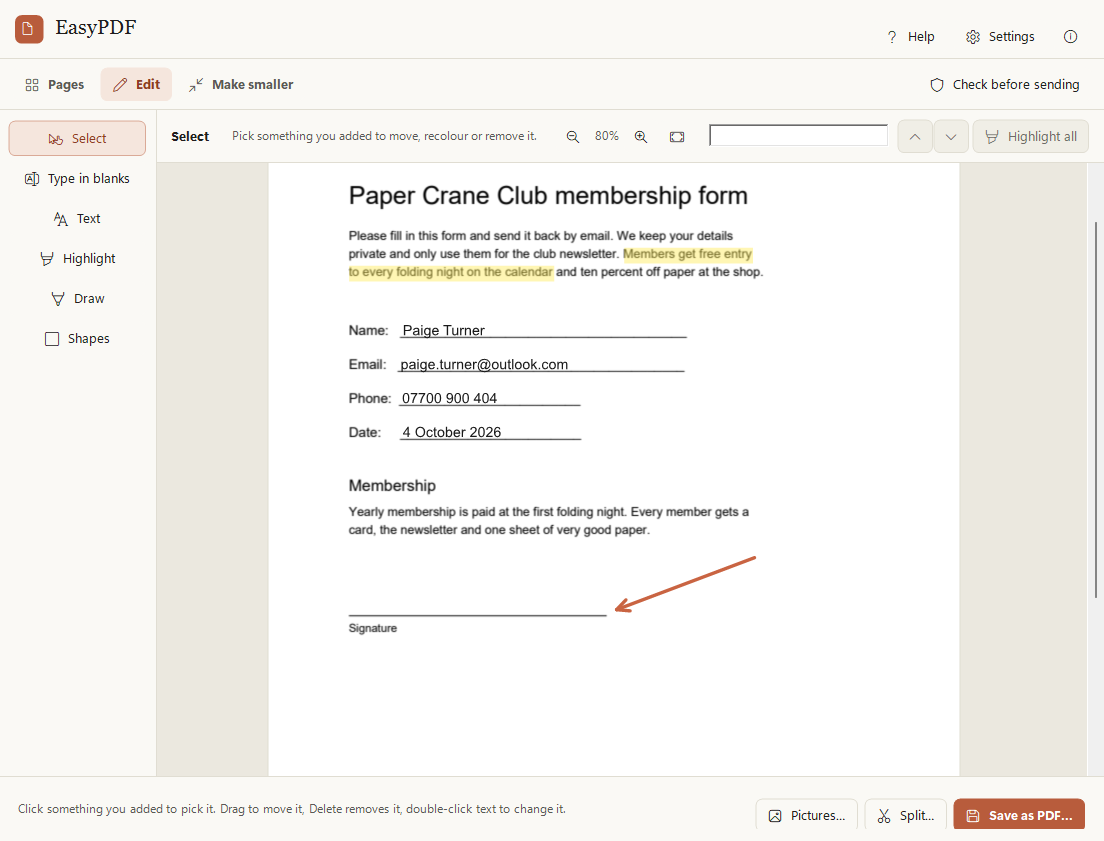
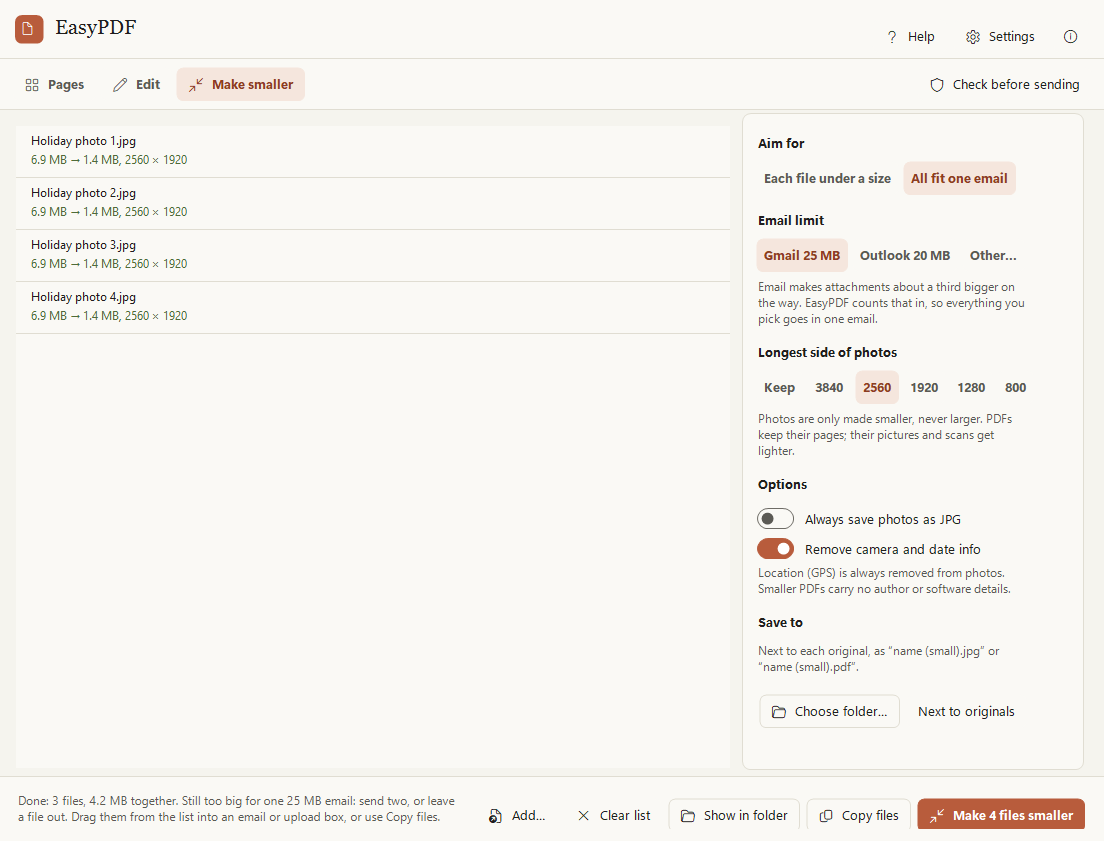
The real app: type into the blanks of a form, highlight, add an arrow, search and save; make four big photos fit one email; then check a letter before sending and make a safe copy.
Features
What EasyPDF does
EasyPDF now includes EasyShrink, so making files smaller and editing PDFs happen in the same window.
Merge and arrange
Drop PDFs and photos in, then drag pages into order. Rotate, delete or reverse them, and undo anything.
Split
One file per page, every few pages, or by page ranges like 1 to 3, 4, 5 to 8.
Search
Find any word across every page. Accents and line breaks don't get in the way.
Highlight
Drag across text and it snaps to whole lines, like a real highlighter. Works on scans too.
Type into forms
EasyPDF finds the blanks for you: form fields, lines, dotted lines and empty boxes, even on scanned forms. Click one, type, press Tab for the next.
Text, shapes and drawing
Add a note anywhere, circle something, point an arrow at it, or draw freehand.
Make it smaller
Pick a limit like 2 MB, or All fit one email, and PDFs and photos fit for Gmail, Outlook and upload forms. iPhone HEIC photos work too.
Check before sending
Finds text still under black boxes, white or tiny text, comments, form answers, attachments and the author's name, then makes a safe copy where it is really gone.
Photos to PDF
Turn photos of forms and receipts into one tidy PDF, or save pages as pictures.
How it works
Three steps
Drop your files in
PDFs, photos and scans, or right-click a PDF and choose Open with EasyPDF.
Arrange or edit
Drag pages in Pages, or switch to Edit to search, highlight, type and draw.
Save a new copy
Save as PDF, then Check before sending. Your original is never changed.
Handy keys
Private by design
Like every Easy Suite app: no account, no internet needed, no tracking.
- Your files are opened and saved on this PC only. Nothing is uploaded, ever.
- Location (GPS) is always removed from photos it makes smaller.
- It runs no scripts from PDFs and keeps no copies of your files.
- PDFs it saves don't carry the author, title or software details of the files you opened.
- Found a problem or have an idea? Feedback is one click away inside the app: it opens a short form in your browser, and the app itself sends nothing.
Download
Get EasyPDF
Free to use for your own personal or work use. Installs for your Windows account only, no administrator rights needed.
Download the installer (39 MB)
- Version
- 2.0.1
- Needs
- Windows 10 (version 2004 or later) or Windows 11, 64-bit. iPhone HEIC photos need the free HEIF Image Extensions from the Microsoft Store.
- SHA-256
bee8bdc1c7735a200f61a196ec78d9d5bb534ed33447525241e4c8bbf8d79a25- Check it
- In PowerShell,
Get-FileHash .\EasyPDF-Setup-win-x64.exemust show exactly this SHA-256. If it doesn't, don't run the file. - Terms
- Licence agreement (you accept it during setup)
- Release notes
- EasyPDF 2.0.1
Installing
EasyPDF is new and made by one person, so Windows may be cautious about it at first. This is normal.
- If your browser says the file is not commonly downloaded, choose Keep.
- Right-click the downloaded file, choose Properties, tick Unblock and click OK. If there is no Unblock box, skip this.
- Double-click it. If you see "Windows protected your PC", click More info, then Run anyway.
- Accept the licence agreement and follow the steps.
A note from the developer
Thank you for trying EasyPDF! I made it so that filling in a form or sending a document never means uploading it to a website first. I hope it saves you time.
Aalok L, maker of EasyPDF
 EasySign
 EasyClip
 EasyFile
 EasyTouch
 EasyGuard
 EasyNote